
- Published on
How to Send TXT Books to Apple Watch with WristTale
Have a TXT novel on your iPhone and want to read it without pulling out your phone? WristTale lets you choose chapters on iPhone, send them to your paired Apple Watch, and read them on the watch after they are saved. Here's what the actual screens look like, and what to check before you put your phone away.
1. Import a book on your iPhone
Open WristTale and import a .txt or .md (Markdown) file. You can also create or edit a book in the phone app. Open the book to check that its chapters were detected as expected before sending it. If the headings are missing, review the file format and chapter tips first.
You need the WristTale watch app installed on your paired Apple Watch. If it does not appear in your watch's app list, check the Watch app on your iPhone for available installations. Garmin Connect is not needed for the Apple Watch transfer.
2. Choose Apple Watch as the destination
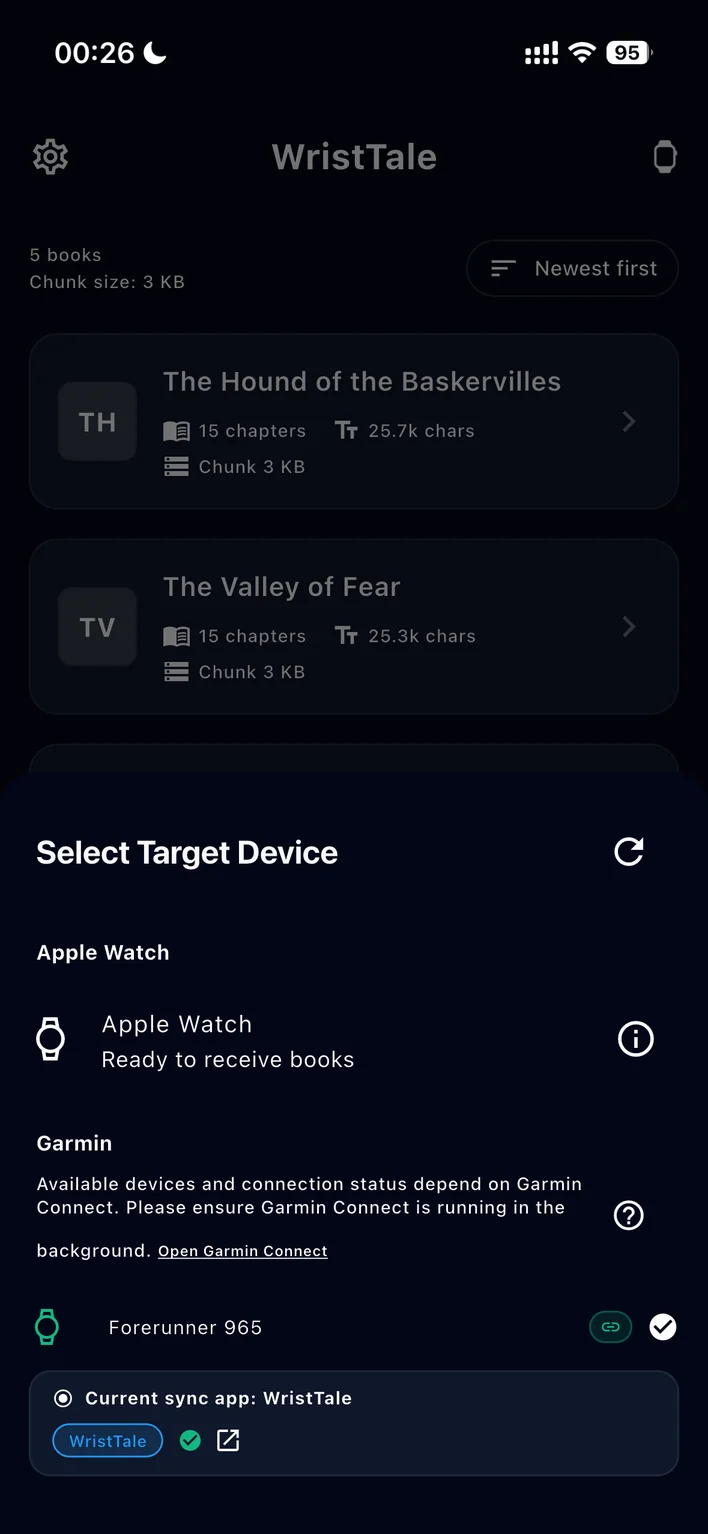
From your book in WristTale, open the send or sync flow and select Apple Watch. If you also use a Garmin watch, it appears as a separate destination; selecting Apple Watch does not send the book to Garmin.
3. Select chapters and start the transfer
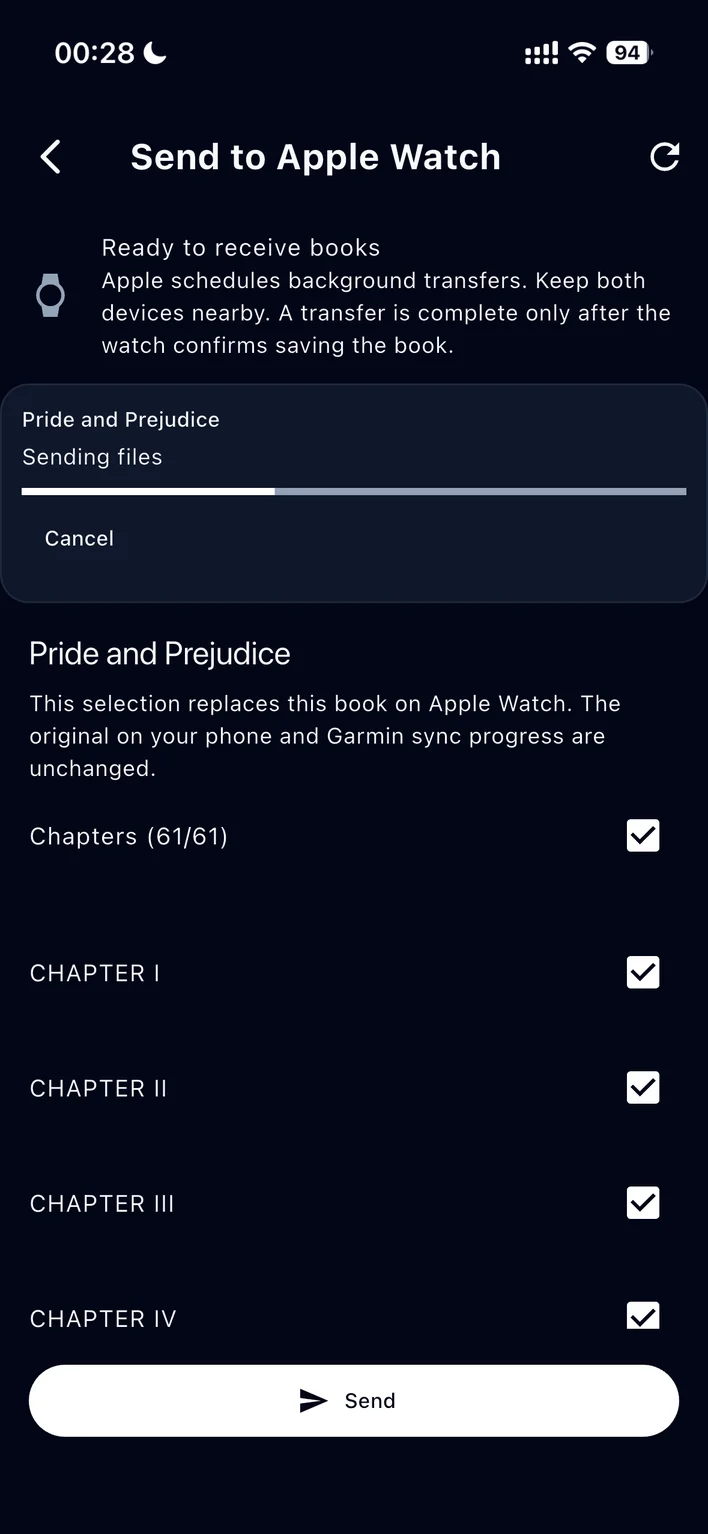
Check the chapters you want on the watch, then tap Send. You can send a selection instead of the whole novel. When you send this book again, the selected chapters replace that book on Apple Watch; the original book on your phone and any Garmin sync progress are unchanged.
The progress bar on the phone means files are being sent, not that the watch has already saved the book. Apple schedules part of this transfer in the background. Keep your iPhone and watch nearby and give them time to finish; wait for confirmation that the watch has saved it.
4. Open the book on your watch
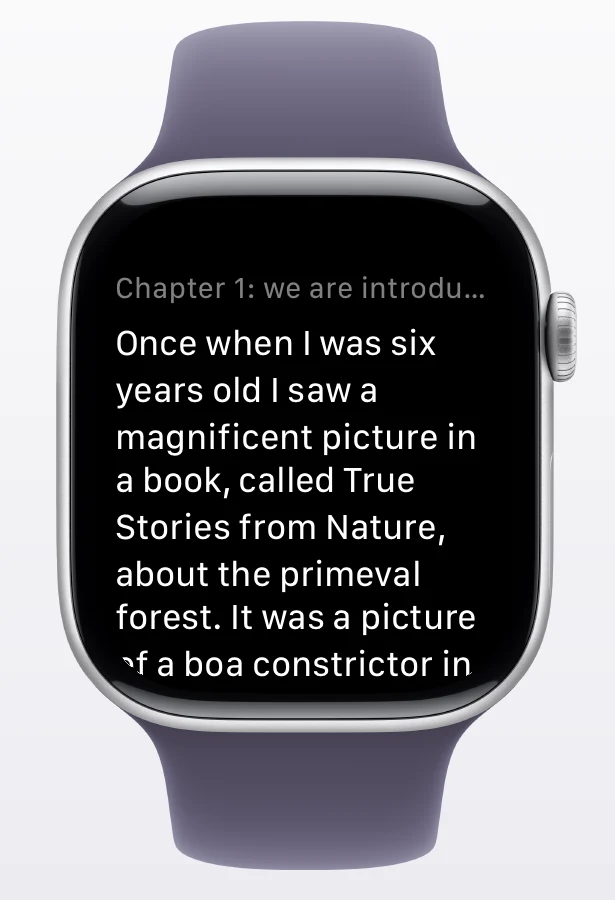
Open WristTale on Apple Watch and check the library for your book. Tap it to start reading. Once the book is saved on the watch, you can read it offline without keeping your iPhone beside you. The watch's reading screen gives the text room to breathe, even on a small display.
If the book does not show up
- Check that WristTale is installed on the watch and that the watch is paired with your iPhone.
- Keep the devices near each other until the watch confirms it has saved the book; a partly filled phone progress bar is not a completed transfer.
- Reopen WristTale on both devices and retry the send if the transfer is interrupted.
- If the book appears but its chapters look wrong, check the headings in the phone preview before sending again. The book import guide covers text structure and encoding.
In short: import on iPhone → choose Apple Watch → select chapters → wait for the watch to save them → read offline. You can get WristTale from the App Store to use the iPhone and Apple Watch apps together.