
Android Watch Ebook Reader for TXT and Markdown
Android watch support available · Tested on Xiaomi Watch 5
Keep TXT books and Markdown notes in a library on your wrist. WristTale on your phone installs the Android watch reader and sends the chapters you choose. Once the watch confirms they are saved, you can leave your phone behind and keep reading.
Screens below show the actual Xiaomi Watch 5 interface in Chinese, presented in a watch frame. Check system and wireless debugging support for other models.
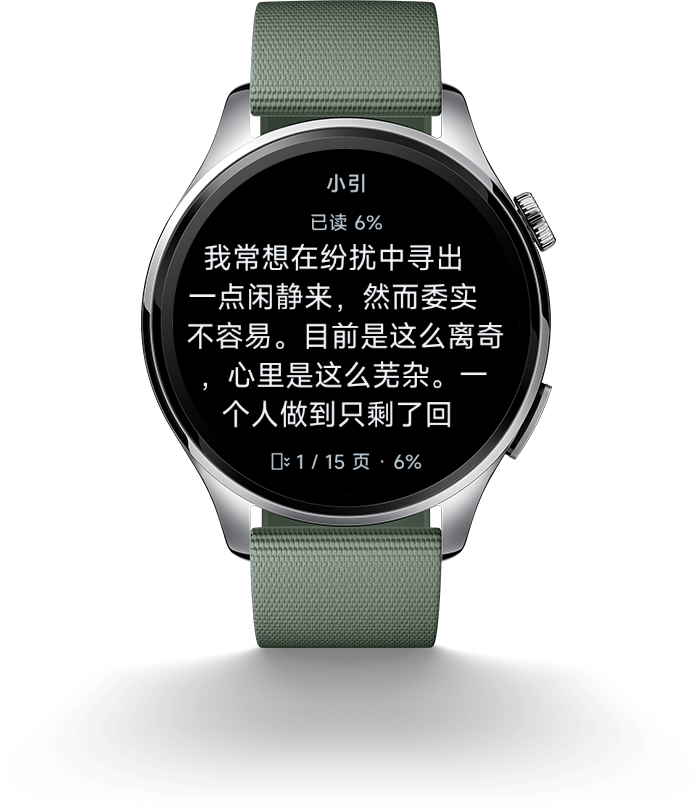
A book library on your Android watch
Import and organize a book on your phone, then send it to the watch. WristTale offers a library, chapter navigation, adjustable text size, reading themes, and automatic page turning. Reading progress is saved locally on the watch so you can resume after leaving the app. Use automatic page turning when frequent taps are inconvenient, or switch back to manual reading.
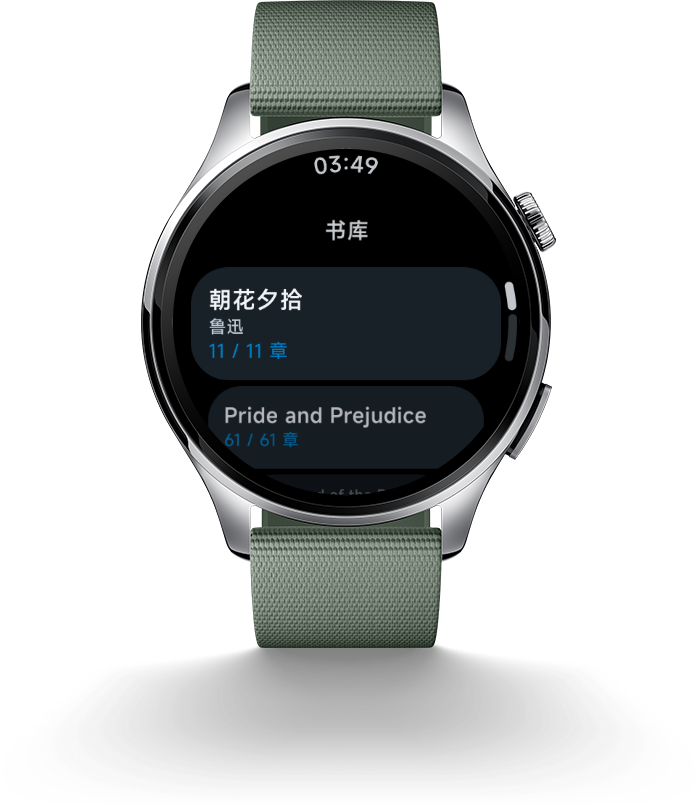
Library: saved books stay on the watch, ready to open.
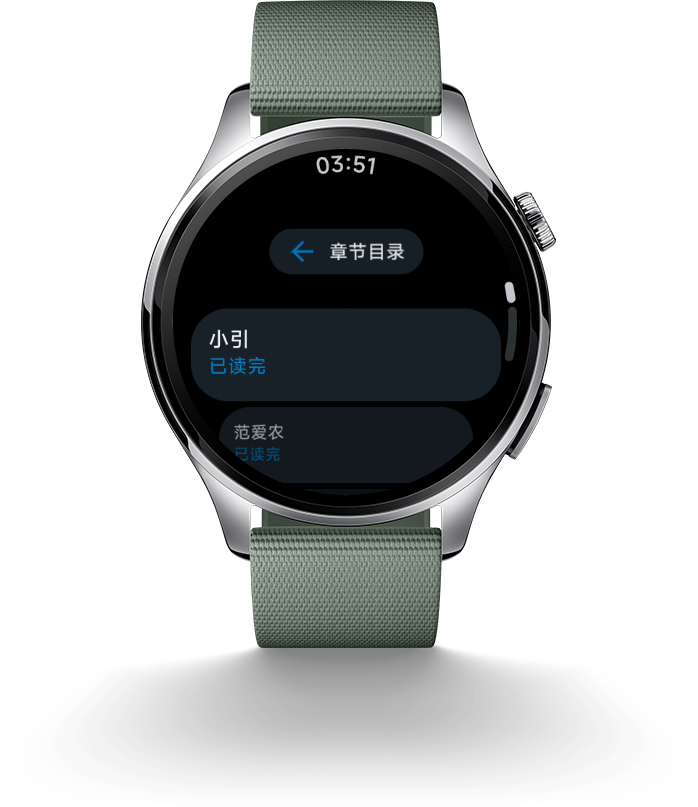
Chapters: choose what to send, then navigate from the watch.
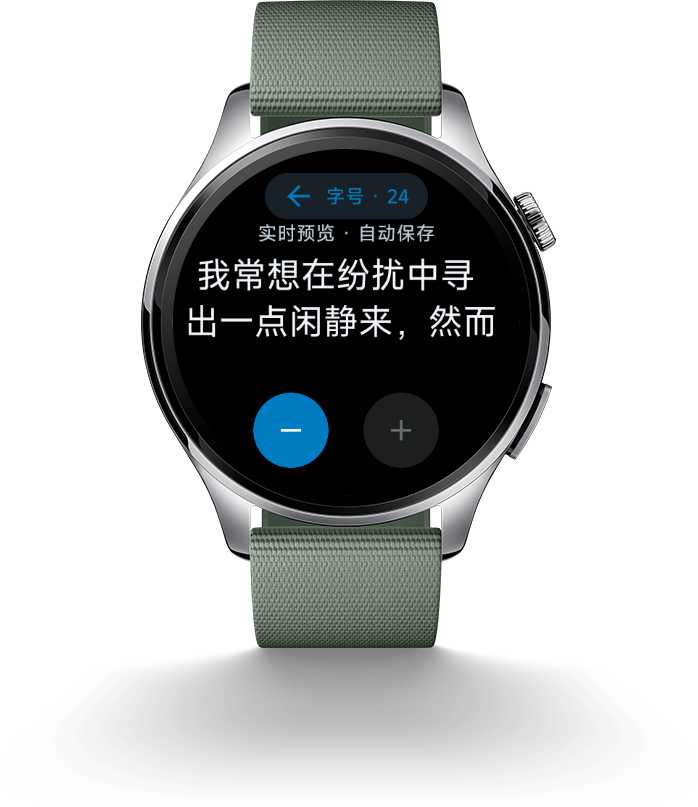
Text size: adjust the display to your screen and reading preference.
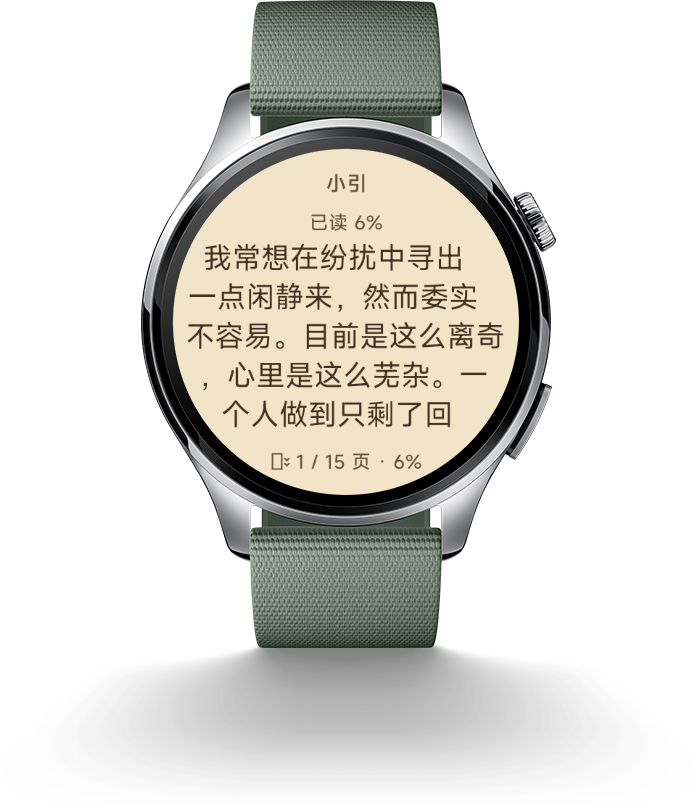
Themes: choose a different background and text color.
Phone and watch compatibility
| Item | Current support and requirements |
|---|---|
| Tested watch | Xiaomi Watch 5. This is a verified device, not a promise that every Xiaomi or Android watch has the same system. |
| Watch installation | Requires an Android 11 or later watch with system wireless debugging. Follow the phone app's compatibility checks. |
| Android phone | Use a WristTale version with Android watch support. Local Bluetooth or Wi-Fi book transfer requires Android 12 or later. |
| iPhone | Installation and transfer are supported in compatible versions with the Android watch feature. Update the app and check its device entry and compatibility guidance. |
| Book formats | Import TXT or Markdown on the phone and preview chapters before sending. Export EPUB or PDF to readable text first. |
| Setup and reading | Installation requires the same trusted Wi-Fi network and wireless debugging. You can turn debugging off afterward and read saved books offline. |
Watch software, permissions, and networking differ between models. Before installing, check that your watch supports third-party Android applications and system wireless debugging. An Android or Xiaomi brand name alone does not establish compatibility.
Install the Android watch reader from your phone
- Get the phone app. Download WristTale for Android or iPhone, then open its Android watch installation flow.
- Prepare the watch and network. Connect the phone and watch to the same trusted Wi-Fi network. Enable developer options and wireless debugging on the watch, then open the system wireless pairing screen.
- Pair in the phone app. Follow its instructions for the watch address, port, and system pairing code. The system's wireless ADB code has six digits and authorizes the installation connection.
- Let the phone download and install. WristTale downloads the appropriate watch APK over the network and installs it through wireless ADB. You do not need a computer, or to find, download, or manually install a package on the watch.
- Open the reader and turn debugging off. After confirming WristTale opens on the watch, you can disable wireless debugging and developer options. Daily book transfer and offline reading do not require them to remain enabled.
Install the reader through the phone app for now. The Google Play Wear OS watch channel is not yet available.
Send books to your Android watch
- Import a
.txtor.mdfile in WristTale on your phone and preview its content and chapter list. For garbled text, see the app guide or use the TXT encoding converter. - Open the watch reader's receive-books screen and choose that Android watch on your phone. Enter its four-digit receiver code when prompted during initial setup. This differs from the six-digit system ADB pairing code used for installation.
- Select chapters and follow the app's Bluetooth BLE or local Wi-Fi transfer flow. Keep both apps in the foreground until the watch confirms the book is saved. A completed phone progress bar alone is not confirmation of watch storage.
- Open the book from the watch library. Once saved, its content, chapters, and local reading progress stay on the watch, and reading does not require your phone nearby.
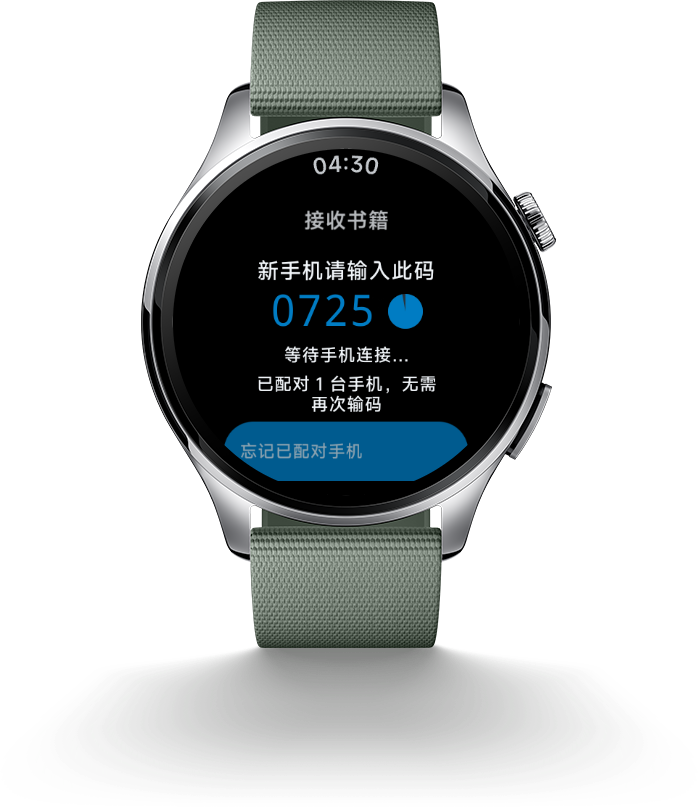
Keep the receive screen open during transfer and wait for the watch to confirm saving.
Common questions
Can Xiaomi Watch 5 read TXT books?
Yes. WristTale has been tested on Xiaomi Watch 5. Import TXT on your phone, send selected chapters, and wait for the watch to confirm saving. You can then read offline, adjust text size and themes, or use automatic page turning.
Do I need developer mode every time I send a book?
No. Wireless debugging is used to install the reader. You can disable it and developer options after installation. Daily transfer uses the reader's Bluetooth or Wi-Fi receiving flow.
Why is the watch missing, or why has my book not appeared?
Check phone system and app compatibility, grant the requested permissions, and keep the watch's receive screen open. For Wi-Fi transfer, both devices must be able to reach each other on the local network. If the phone finishes sending without a watch save confirmation, check the receiver status before retrying. The app guide covers the workflow.
Does reading progress sync across different watch platforms?
This page describes local Android watch progress, not cross-platform cloud synchronization. Your phone library can send to each device separately. See the Apple Watch ebook reader or Garmin TXT reader for their setup and transfer methods.
Get the phone app, follow its Android watch installation flow, and start reading on your wrist.