
- Published on
Apps to Replace Doomscrolling: Read on Your Apple Watch
You pick up your phone to fill a spare minute. A few posts later, the spare minute has become twenty. If you are looking for apps to replace doomscrolling, start with an activity you can finish: a page of a novel, a saved article, a short audio chapter, or a few lines in a journal.
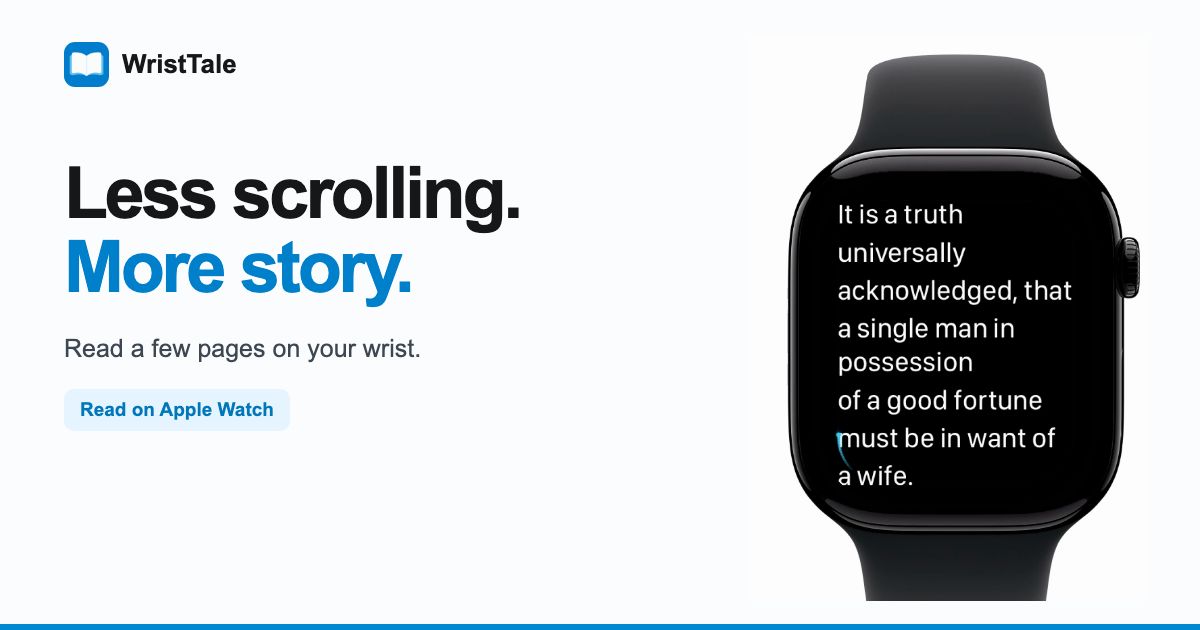
For Apple Watch owners, there is another option: leave the phone in your pocket and read a little on your wrist. WristTale lets you import a TXT or Markdown book on iPhone, send it to your paired Apple Watch, and read offline after the watch saves it.
This works best for small gaps: waiting for a train, sitting in a queue, or taking a quiet break. You choose the book before the gap arrives. When you have read enough, you can stop at the next paragraph instead of asking a feed what comes next.
What to look for in apps to replace doomscrolling
Doomscrolling usually describes repeatedly reading distressing news. People also use the word for the broader habit of scrolling through an endless feed. Either way, a replacement needs to give your hands something easy to do when you would normally open that feed.
Look for three practical qualities:
- A quick start. The book, recording, or note is already open or easy to reach. If you need to browse for something first, you have added another decision.
- A visible stopping point. A page, a chapter, or one journal entry gives the session an ending. Pick a stopping point that fits the time you actually have.
- Something you chose in advance. Keep a small selection ready rather than spending each break searching for the perfect thing to read or hear.
A reading app gives you another activity; it does not stop you from opening social media. If your goal is to limit a particular app, you may also want to change its notifications or use your phone's app limits. The two approaches solve different parts of the problem.
Things to do instead of doomscrolling
The best replacement depends on the moment. A watch is convenient for a few paragraphs, while a phone, book, or audio player may suit a longer break.
| Your spare moment | An alternative | A simple stopping point |
|---|---|---|
| One or two minutes, seated or standing still | Read a few paragraphs on Apple Watch | Finish the paragraph you are on |
| Five minutes with your phone | Open an ebook you have already chosen | Read one page or short section |
| A longer journey where listening is practical | Continue an audiobook | Finish a chapter or use a sleep timer |
| You want to catch up on a specific topic | Read one saved article | Reach the end of that article |
| You want to get a thought out of your head | Write a short journal entry | Write three sentences |
| You want a break from screens | Carry a paperback or pocket notebook | Read a page or make one note |
If you want specific apps to start with, these cover a few different uses:
- Apple Books: read an ebook on your iPhone, or listen to an audiobook. Open a book you have already chosen before your break starts.
- Libby: borrow ebooks and audiobooks through a participating library using your library card. The collection and availability depend on your library.
- Apple Notes: keep a note ready for three sentences about your day, a question, or an idea. You can begin with an app already on your phone.
- WristTale: read your own saved TXT or Markdown text on Apple Watch when you would rather keep your phone away.
The first three are alternatives for reading, listening, or writing on your phone; they are not ways to send borrowed or purchased ebooks into WristTale. For the watch workflow below, use a TXT or Markdown file you have permission to use.
You do not need to prepare all six. Choose one that fits a recurring moment in your day. If you always reach for your phone while waiting for coffee, having a book ready matters more than building a large library of replacement apps.
Can you read on Apple Watch?
Yes. With WristTale, your iPhone handles book import and transfer, and Apple Watch displays the saved text. You can read without keeping the phone beside you once the watch confirms that the book is saved.
The small display makes this a different experience from reading on a phone or an ereader. It suits short sections of text: a novel you know well, a short story, personal notes, or a vocabulary list. For a long reading session, you may prefer a larger screen or a paper book.
The video below follows Pride and Prejudice from the iPhone library to Apple Watch, then shows larger text, reading themes, automatic page turning, chapters, and bookmarks.
The demonstration uses English iPhone and Apple Watch simulator captures. Import and transfer are edited for pace; the video is a feature demonstration, not a transfer-speed benchmark.
Get a book ready before your next break
Set things up when you have a few minutes with both devices. Then your next short reading session can begin on the watch.
1. Choose one text file
WristTale supports .txt and .md files. Start with a book you already want to read, or a short piece you can comfortably return to in small sections. You can use your own writing or a text file you have permission to use.
The demo uses Pride and Prejudice from Project Gutenberg, a 61-chapter novel. Check the source's copyright information for your location before downloading a book.
2. Import on iPhone and send to Apple Watch
Import the file in WristTale on your paired iPhone and check the chapter preview. Choose Apple Watch in the send flow, select the chapters you want, and start the transfer. The app handles the transfer method; you do not need to turn that choice into part of your reading routine.
Keep the devices nearby until the watch confirms that the book has been saved. Progress on iPhone means the transfer is underway; it is not the same as the book being ready on the watch. The illustrated iPhone-to-Apple-Watch guide walks through the actual screens and troubleshooting steps.
3. Open the saved book on your watch
Open WristTale on Apple Watch, choose the book from your library, and start reading. Saved books are available offline, so you do not need a cellular watch or an internet connection for the reading session itself.
For supported systems and installation details, see the Apple Watch reader page. Basic reading requires watchOS 10 or later; automatic scrolling requires watchOS 11 or later.
Make a small screen comfortable to read
Before putting the phone away, spend a moment adjusting the watch reader. The goal is to make the next session easy to begin.
Choose a readable font size. Larger text puts fewer words on each page, but you should not have to struggle to fit more of the book on screen. Try reading a whole paragraph at your chosen size before settling on it.
Pick a reading theme. Compare the available backgrounds and text colors in the light where you expect to read. A preview that looks good at a desk may feel different on a bright platform or in a dim room.
Try automatic page turning. This moves the reading along without repeatedly advancing the text yourself. Try it while you are stationary, and return to manual reading if you prefer controlling the pace. Manual reading is also available on watches running watchOS 10.
Use chapters and bookmarks. Chapters help you jump to a known part of the book. A bookmark gives you a particular passage to return to, so finding your place does not become another task during a short break.
You can find more on importing files, chapter structure, and sending books in the WristTale app guide.
Try one small swap
For your first attempt, choose a moment rather than a daily reading target. For example: “When I am waiting for my train, I will read the next two paragraphs before opening a feed.”
Have the book saved on the watch beforehand. Open it, read those paragraphs, and put your wrist down when you reach your stopping point. Read only where you can safely give the text your attention and where reading is permitted.
After a few tries, ask a practical question: was this easy enough to do again? If the display felt cramped, try a larger font or switch to your phone's ebook reader. If you preferred listening, prepare an audiobook instead. A useful alternative is one you want to return to.
If reading on your wrist fits that spare moment, get WristTale for iPhone and Apple Watch, send one book, and keep the next paragraph ready.